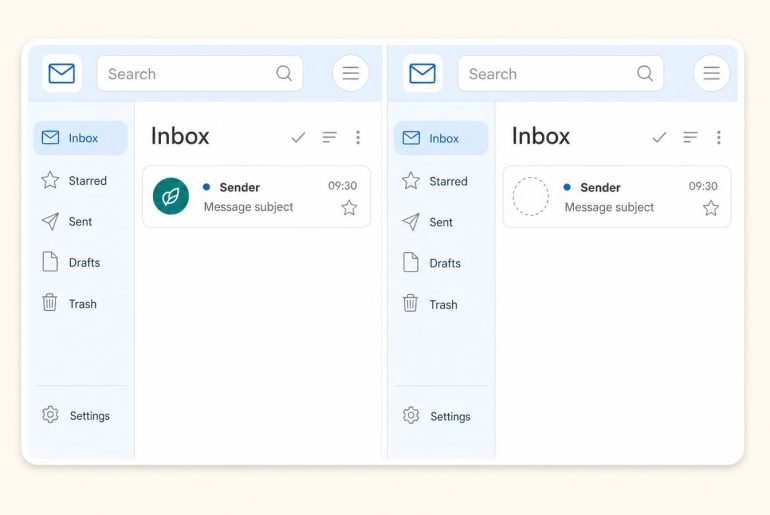


You reply to a customer from contact@yourdomain.com in Gmail, like every morning. In January 2027, that “From” line disappears if your domain is hosted outside Google. And when deliverability drops without any change to the content, the new sending path is the first suspect.
In January 2027, Google is shutting down Send mail as for third-party addresses. Gmailify and POP fetching end the same month. Gmail aliases, Google Workspace’s Send as, and IMAP, POP and API access stay in place. For a domain hosted elsewhere, send from your host with an IMAP/SMTP client or migrate the domain to Google Workspace.
What goes away and what stays
Google lists the details on its help page on third-party email accounts. Only accounts not hosted by Google are affected: @outlook.com, @yahoo.com, @hotmail.com, and business domains whose email lives with another provider.
| Feature | January 2027 | What it changes |
|---|---|---|
| “Send mail as” with a third-party address | Removed (web and mobile apps) | No more sending from @outlook.com, @yahoo.com or your domain hosted elsewhere |
| Gmailify | Removed | End of Gmail’s spam filtering, categories and advanced search on the third-party account |
| POP fetching (“Check mail from other accounts”) | Removed | Gmail no longer pulls emails from the other account |
| Gmail aliases and Google Workspace Send as | Kept | No action needed |
| Access to Gmail via IMAP, POP and API (Outlook, Thunderbird, Apple Mail) | Kept | No action needed |
| Third-party accounts in the Gmail mobile app | Kept | Reading and sending from the third-party account itself |
| Already imported messages | Kept | Nothing is deleted from the mailbox |
Automatic forwarding set up with the other provider keeps working. It lives outside Gmail and doesn’t depend on these features.
Where the timeline stands
Google announced a transition period over Q3 and Q4 2026. The features still work, but Gmail may restrict new setups. Google hasn’t published an exact day: the shutdown is announced for January 2027. Migrate now, well before then.
Take stock of your addresses
Before choosing a solution, list what currently goes through Gmail. 10 minutes is enough.
- Open Gmail on a computer, then click Settings > See all settings > Accounts and Import tab.
- Under “Send mail as”, note every address that is neither @gmail.com nor a Workspace alias. These are your doomed sending addresses.
- Under “Check mail from other accounts”, note every account fetched via POP. These are your doomed inboxes.
- For each line, find the mailbox’s host (Outlook, Yahoo or your web host) and its SMTP and IMAP credentials.
A + alias or an alias between Google addresses isn’t part of this batch. To understand the difference, read our article on email aliases.
Receiving without POP fetching
Google’s page on Gmailify and POP access gives two routes. The first: enable automatic forwarding with the other provider to your Gmail address, following that provider’s documentation. New emails then arrive in Gmail on the web. The second: add the account in the Gmail app for Android and iOS, which reads it over IMAP. You can combine both.
Forwarding only brings in future emails. Those already fetched stay in the mailbox.
Sending from an Outlook or Yahoo address
For a personal address, Google recommends the provider’s website or app: outlook.com for an Outlook address, mail.yahoo.com for a Yahoo address. If you want everything in one place, install a desktop client like Outlook, Thunderbird or Apple Mail and connect each account over IMAP/SMTP. The client reads and sends through the provider’s servers. Gmail is no longer involved.
A draft written in Gmail with a third-party address in “From” won’t go out after January 2027. Check the reply templates and scheduled sends that depend on it.
Business domain hosted elsewhere
This is the typical small business case: it has its domain and mailbox with a web provider, reads everything in Gmail for convenience, and sends as @yourdomain.com through “Send mail as”. Three ways out exist.
- IMAP/SMTP email client. Get the incoming IMAP server, outgoing SMTP server, username and password from your host’s customer area. Create the account in Thunderbird or Outlook. For outgoing SMTP, Google cites port 465 with SSL or port 587 with TLS. Send a test message to another address. Your team keeps its domain address.
- Your host’s web interface. You install nothing. These messages do leave the Gmail interface, though. Reserve this route for occasional use.
- Google Workspace on the domain. Google cites this option in its FAQ for business use. Your administrator adds the addresses and aliases, then Google’s data migration service moves the history. Workspace’s Send as stays active.
Automatic forwarding plus the mobile app covers reading. Sending with the domain address stays out of their reach: Google specifies that forwarding is independent of “Send mail as”. According to Google, sending from an invalid address returns a bounce message.
The differences between IMAP and POP and the ports for each protocol are detailed in our comparison IMAP or POP.
Third-party replacement services
Extensions and services promise to replicate Send mail as. Google advises against them: they often ask for your credentials or an OAuth token, which exposes your account to security and privacy risks. Google guarantees neither their security nor how they handle data.
Check SPF, DKIM and DMARC after the switch
Today, a message sent from your domain through Gmail can show the recipient a “from yourname@gmail.com on behalf of” line with your address, according to Google. After the switch, the message leaves from your host’s servers or Workspace. If that server isn’t declared in the domain’s SPF record or doesn’t sign with DKIM, the domain’s sender reputation rides on a path nobody has checked. The first signs: complaints and spam placement, then rising hard bounces. Gmail’s Postmaster Tools shows the spam rate reported by recipients.
On switch day:
- Send a message to a personal Gmail address, then open it. Click the three dots > Show original.
- Check SPF, DKIM and DMARC for the PASS mention. A FAIL line points to the service to declare or sign.
- Add the sending server to the domain’s SPF record, following your host’s documentation.
If DMARC isn’t published yet, the step-by-step guide to set up DMARC describes the DNS record to publish.
Before the first campaign after the switch, run a sample of the list through verification to measure the hard bounce rate. List hygiene done before sending keeps that first batch clean.
Today, spot the addresses on your sending list that still go through “Send mail as”.